My phone buzzed at 4:12 on a Tuesday morning. It was a login notification from my email provider, asking whether it was really me trying to sign in from an address somewhere in Eastern Europe.
It wasn't me. I was asleep. But I hit "deny" on the prompt, rolled over, and went back to sleep—because I didn't need to do anything else. The attacker had my password. What they didn't have was my second factor, and that alone stopped the whole thing cold.
That's what two-factor authentication (2FA) actually does. Not prevent attacks. Not make you invincible. It makes the attack cost more than the prize is worth.
Most people dismiss this until it happens to them. I'll explain what 2FA is, how the different methods stack up against each other, and which ones are quietly putting you at risk even when they look secure.
Key Takeaways
- 2FA requires two proofs of identity from different categories—something you know, something you have, or something you are. One from each category.
- The most common 2FA today is a one-time code sent by SMS or generated by an authenticator app, but SMS is the weakest link in the chain.
- SIM swapping and real-time phishing can defeat SMS codes, which is why hardware security keys and passkeys are becoming the default recommendation.
- Apple, Google, Facebook, and Fortnite all support 2FA, but the setup and recovery paths differ wildly.
- Backup codes exist for a reason. If you lose your phone and haven't saved them, you can lock yourself out permanently.
- Not all 2FA is equal. A push notification you tap "approve" on can be just as vulnerable as a text message.
What is two factor authentication and why you need it
Two-factor authentication is a security method that asks for two separate pieces of evidence before letting you into an account. The key word there is separate. Two passwords don't count. A password plus a PIN doesn't count. It has to be two factors from two different categories.
Those categories are:
- Something you know—a password, a PIN, the answer to a security question.
- Something you have—your phone, a hardware token, a smart card.
- Something you are—your fingerprint, your face, your voice.
The whole point is that an attacker who steals one factor still can't get in without the other. If they have your password but not your phone, they're stuck. If they have your phone but not your password, same story.
Why a password alone was never going to be enough
Here's the uncomfortable truth: passwords leak constantly. Data breaches dump millions of them every year. Credential-stuffing attacks—where a bot tries the same email and password combo across hundreds of sites—are automated, cheap, and remarkably effective. If you've reused a password anywhere, it's probably already in a database somewhere.
I ran a test on my own accounts a while back. I fed my main email into a breach-checker and found it in four separate leaks going back nearly a decade. Four. I hadn't changed that password in years. That afternoon I set up 2FA on everything that supported it, and I've never looked back.
2FA vs MFA—what's the actual difference?
2FA means exactly two factors. MFA (multi-factor authentication) means two or more. That's it. In practice, most consumer services use the terms interchangeably, but MFA is the broader umbrella. If a system asks for a password, a code, and a fingerprint, that's MFA, not 2FA. For the purposes of this article, we're talking about the two-factor case, because that's what you'll encounter on 95% of the sites you use.
Two-factor authentication examples you already use (maybe without knowing)
You've probably encountered 2FA dozens of times without registering it as such. Here's what it looks like in the wild.
The SMS code
You log in. A six-digit number arrives by text. You type it in. Done. This is the most common form of 2FA on the planet, and it's also the one I trust the least. I'll explain why shortly.
The authenticator app
Google Authenticator, Authy, Microsoft Authenticator—these generate a new code every 30 seconds based on a shared secret established when you first set up the account. No network required. The code never travels over SMS. This is a meaningful step up from text messages.
Push notifications
Apple and Microsoft both lean heavily on this. You try to log in, and a prompt appears on your phone: "Are you trying to sign in?" You tap approve. Convenient—until you realize that attackers have figured out how to spam these prompts at 3 AM hoping you'll tap approve just to make them stop.
Hardware security keys
A small USB or NFC device you tap to prove it's really you. These are the gold standard for consumer-grade 2FA. They're resistant to phishing in a way nothing else is, because the key itself verifies the website's domain before responding. I bought two for $50 each and set them up on my primary accounts. I keep one on my keychain and one in a drawer as a backup.
Why SMS 2FA is a problem (and what to use instead)
I said earlier that SMS is the weakest form of 2FA. Here's the why.
SIM swapping
An attacker calls your mobile carrier, pretends to be you, and convinces a support agent to transfer your number to a SIM card they control. It sounds far-fetched until you read about how often it happens. The barrier is a support rep having a bad day. Once the number is ported, every SMS code meant for you lands on their phone instead.
Real-time phishing
This one is scarier. An attacker sets up a fake login page that looks identical to the real one. You enter your password. You enter the SMS code that arrives. The attacker relays both to the real site in real time and gets in. The code expires in 30 seconds, but that's plenty of time for a script to do its work.
Authenticator apps are immune to this particular trick because the codes are tied to the domain's secret, not just the account. Hardware keys are even more resistant—they refuse to respond to the wrong domain at all.
What to use instead
| Method | Phishing resistance | Convenience | Recovery if lost |
|---|---|---|---|
| SMS code | Low | High | Easy |
| Authenticator app | Moderate | Moderate | Backup codes required |
| Push notification | Moderate | Very high | Alternative device needed |
| Hardware key | Very high | Low (must carry it) | Second key recommended |
| Passkey | Very high | High | Depends on provider |
My honest recommendation: use an authenticator app as your baseline. If a service offers hardware keys, use one. SMS is better than nothing, but if you have the choice, skip it.
Two-factor authentication how to turn on—on the platforms you actually use
Setup paths differ. Here are the ones I get asked about most often.
Two-factor authentication on iPhone and Apple
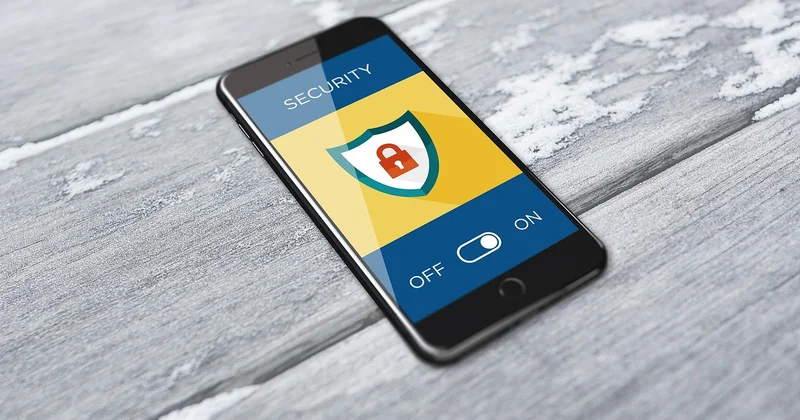
Apple calls it "two-factor authentication for Apple ID," and it's on by default for anyone who created an Apple ID in the last few years. To check: go to Settings → [your name] → Sign-In & Security → Two-Factor Authentication. If it's off, tap "Turn On." Apple will ask you to verify a phone number and trust at least one device. From that point, any new device sign-in requires a six-digit code sent to your trusted devices automatically.
Two-factor authentication on Facebook
Facebook hides it under Settings & Privacy → Settings → Meta Accounts Center → Password and Security → Two-Factor Authentication. You can choose between an authenticator app, a security key, or SMS. I'd pick the authenticator app. Facebook also lets you set up recovery codes—download them, don't screenshot them.
2FA on Fortnite
Epic Games requires 2FA for anyone who wants to use certain features (like gifting or playing in tournaments), and it's genuinely useful given how often game accounts get targeted. Log into your Epic account, go to Account → Password & Security → Two-Factor Authentication, and pick your method. The mobile authenticator app is the standard recommendation. Email-based 2FA is also available but slow.
The order I'd recommend setting things up
- Your email first—everything else resets through it.
- Your primary bank account, because money.
- Cloud storage (Google Drive, iCloud, Dropbox) since that's where your documents live.
- Social accounts, starting with whichever one is tied to your other logins.
- Everything else at your own pace.
Save your backup codes to a password manager before you close the setup screen. Not after. Not "I'll do it later." Before.
Recovery: what happens when you lose your second factor
This is the part most articles skip, and it's where people actually get hurt.
I know someone—let's call her Marlene—who broke her phone while traveling. She'd set up 2FA on her main email years earlier using SMS. The problem? She'd changed her phone number six months before and never updated the 2FA settings. The codes were going to a number she no longer owned. It took her eleven days to regain access to her own account, and it required notarized identity documents sent to the provider's support team.
Eleven days. For an email account.
The lesson is straightforward: backup codes are not optional. When you enable 2FA anywhere, the service gives you a list of one-time recovery codes. Print them. Store them somewhere you'll actually find them if your phone is gone. A password manager works. A sealed envelope in a filing cabinet works too.
Second: if you change your phone number, update every 2FA setup before the old number goes dark. Third: for critical accounts, set up two methods—an authenticator app and a hardware key, for instance. If one fails, the other is there.
Is 2FA worth the hassle?
Yes. That's not a hedge.
The extra fifteen seconds per login is the cost. The benefit is that a stolen password stops being a catastrophe. I've had accounts probed by attackers since I enabled 2FA. Not one of them got in, not because I'm careful, but because the barrier was there.
The nuance worth acknowledging: 2FA doesn't protect you from everything. If your device is compromised with malware, if you're tricked into approving a push prompt, if an attacker has your recovery codes—all of those bypass the second factor entirely. But that's a much shorter list of attack vectors than "I reused a password and it leaked."
Start with your email. Then your bank. Then everything else. If you use SMS because that's all a service offers, fine—but know what you're accepting. If you can use an authenticator app or a hardware key instead, do it.
That 4 AM notification I got? That's the whole thing in miniature. The password wasn't enough. The second factor did its job. And I went back to sleep.