Two years ago I did something stupid. My laptop's SSD died on a Tuesday morning, and I hadn't backed up a single file since the previous November. The data recovery shop quoted me €680 and told me they'd get back "most" of it. They got back maybe 70%. I paid anyway. That afternoon I signed up for three different cloud backup services because I couldn't decide which one to trust, and honestly? That's exactly the kind of decision this article is about.
Choosing a cloud backup service sounds simple until you realize that most "cloud storage" giants (Google, Apple, Dropbox) are not actually backup tools. They're sync tools wearing a backup costume. And the difference matters the moment things go wrong.
Key Takeaways
- Sync services (iCloud, Google Drive, Dropbox) mirror your mistakes. Real cloud backup services keep historical versions you can roll back to.
- Storage limits vary wildly: from 2 TB hard caps on cheaper personal plans to unlimited tiers that throttle after roughly a terabyte of daily upload.
- The 3/2/1 rule is your safety net: 3 copies, 2 different media, 1 offsite.
- Restoration speed matters more than backup speed. Most people figure that out the hard way, like I did.
- For businesses with compliance needs, enterprise plans with private encryption keys are non-negotiable.
Cloud backup services compared: what actually matters beyond the marketing
Ask ten people what they use for backup and you'll get ten answers, most of them wrong in the same way. They'll say "I use Google Drive" or "everything's on iCloud." Here's the thing: those aren't backups. They're mirrors.
If you delete a file on your laptop and your sync client is running, that deletion propagates. Gone. A real backup service keeps versions for 30 days, 90 days, a year, sometimes forever. That single feature is worth more than any amount of storage space.
Backup vs sync vs cloud storage: the distinction nobody explains properly
Cloud storage is a parking lot. You put files there, you take files out. Cloud sync keeps two parking lots identical. Cloud backup takes a snapshot of your entire machine on a schedule and files it away in a vault you can't accidentally empty from your own desktop.
When I first started testing these tools around 2023, I made the rookie mistake of thinking Dropbox's versioning was enough. It isn't. Dropbox keeps versions for 30 days on its standard plans. If ransomware sits in your system for six weeks before triggering, your "backup" is worthless.
- Sync services: fast, convenient, dangerous as a sole backup strategy
- True backup services: scheduled snapshots, long retention, image-level restore
- Hybrid setups: what I actually recommend, and what most IT teams quietly run
Storage limits and price per TB: where plans quietly diverge
Storage limits are where the fine print lives, and this is the part most comparison articles gloss over. Here's what you're actually looking at across the main categories:
| Service type | Typical storage ceiling | Devices included | Versioning window | Rough cost per extra TB |
|---|---|---|---|---|
| Personal backup (Backblaze-style) | Unlimited, single computer | 1 | 30 days standard | N/A (flat fee) |
| Sync services (Google, Dropbox, iCloud) | 2 TB to 5 TB tiers | 5-10 | 30 days typical | €8-10/month |
| Prosumer backup (iDrive-style) | 5 TB to 10 TB | 5-10 | Up to a year | €5-8/month |
| Enterprise backup | Custom, per-seat licensing | Unlimited | Configurable, often forever | Volume contracts |
The hard cap problem is real. I watched a client hit their 2 TB ceiling mid-month and get throttled to dial-up speeds until the next billing cycle. Throttling isn't a bug, it's policy. Read the fair-use clause before you commit.
Is there a better option than iCloud storage?
Yes, and it depends entirely on what you're protecting.

iCloud is excellent if your entire life happens on Apple hardware and you never accidentally delete anything important. For everyone else, it has two structural weaknesses: it doesn't back up non-Apple devices properly, and it's sync-first. Delete a photo on your iPhone, and it vanishes from your Mac and iCloud web within seconds.
Better options fall into two buckets. If you want a genuine backup of a Mac or Windows machine, a dedicated service that takes full disk snapshots is the answer. If you just want expanded storage across Apple devices, upgrading iCloud is fine, but understand you're buying storage, not protection.
What I personally do: iCloud for photos and messages (convenience wins), a dedicated backup service for the actual work machine (protection wins). Two subscriptions, roughly €12 a month combined, and I sleep better.
What works best for personal use
For a single computer and a normal amount of data, the flat-fee unlimited plans are hard to beat. You install the client, it runs continuously, it doesn't care whether you've got 500 GB or 4 TB of photos. The catch is usually device count: one computer per license on the cheapest tier.
What works best for a family
Families need something different. You want shared space, individual accounts, and no one person's mistakes wiping the whole archive. Family plans on the major sync platforms give you 5-6 accounts and pooled storage, often in the 2 TB range. Pair that with one true backup for the household computer and you're covered.
What is the 3/2/1 rule for storage?
Three copies of your data. Two different types of media. One of those copies offsite.
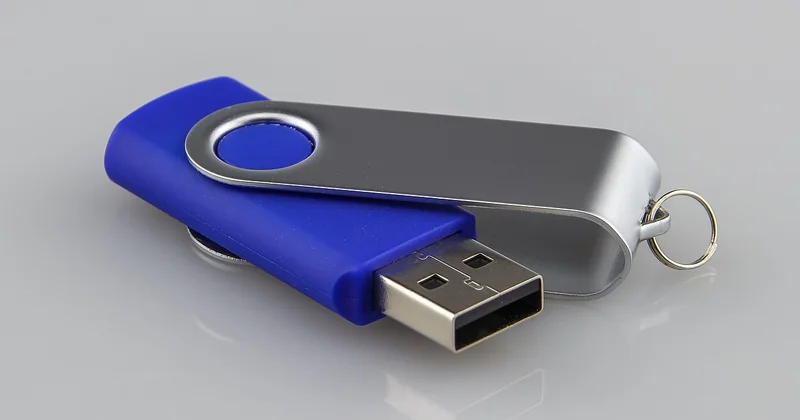
The logic behind it is almost embarrassingly simple once you see a failure up close. Your original file lives on your laptop (copy one). A local external drive holds a second (copy two, different media). A cloud backup service holds the third somewhere that isn't your house (offsite, copy three).
When a fire, a theft, or ransomware hits, the local copies die together. The offsite one survives. That's the whole point. It's a rule born from decades of IT practice, not marketing, which is why it's still the one every serious sysadmin repeats.
In practice I've watched people implement this and still fail because copy two was a mirrored drive sitting on the same desk as the laptop. Same location, same fire. The "different media" and "offsite" parts aren't optional.
What is one downside of cloud backup?
Restoration time. It's the downside almost nobody talks about until they need it.

Backing up 800 GB takes days over a typical home connection. Restoring that same 800 GB takes just as long, sometimes longer, because some providers throttle download speeds for large recoveries or charge egress fees. And you're doing this while your machine is dead or your files are locked by ransomware, which is the worst possible moment to wait 72 hours.
Other real downsides worth knowing:
- Bandwidth dependency: a flaky connection means your backup silently falls behind
- Egress costs: some enterprise plans charge per gigabyte downloaded during recovery
- Encryption key loss: if you hold your own private key and forget it, your data is gone forever, by design
- Provider shutdowns: small backup companies do fold, and you have a migration window measured in weeks
My fix, after learning this the hard way: I keep a local disk image updated monthly alongside the cloud copy. If disaster strikes, I restore from local disk in an hour, then sync the rest from the cloud at leisure. Best of both worlds, minor hassle.
Which cloud storage service offers the best backups?
No single winner exists, because "best" splits along a fault line: personal vs business.
For personal use
The unlimited flat-fee players win. You plug in the client, forget about it, and get full-disk protection with versioning. Around €7-9 a month. If you want per-file granularity and cross-platform support including mobile, a prosumer-tier plan with 5 TB is the safer buy.
For business use
Different game entirely. Cloud backup services for business need three things the consumer tools skip: centralized admin, compliance logging, and private encryption keys where the provider genuinely cannot see your data. Enterprise cloud backup and recovery also has to handle virtual machines and server images, not just a user's photo folder.
I've helped three small companies migrate their backup stack. Every one of them eventually moved to a plan where the keys stayed with them. It costs more. It's worth it the first time a provider has a breach.
What about Google and the big names?
Google's storage tiers are cheap and reliable. For pure cloud storage, they're excellent. For backup specifically, you have to configure the versioning and retention yourself, and most people never touch those settings. That's not the service's fault, but it means "using Google Drive" and "having a backup" are two very different states of affairs.
The bill you don't want to pay twice
Here's the uncomfortable truth I keep coming back to: the €680 I spent on data recovery bought me a lesson, but it could have bought a decade of backup subscriptions. The math isn't close.
Pick one sync service for convenience. Pick one true backup service for protection. Set both up this week, verify a restore once, and then stop thinking about it. The worst backup strategy is the one you keep meaning to set up next month, because the SSD doesn't check your calendar before it dies.