You open Task Manager because your PC is stuttering. There's a graph there, a percentage, and it's pinned at 94%. You close a few browser tabs and it drops to 71%. Nobody ever explained to you what that number actually measures, so you do the thing everyone does: you assume you need more RAM, more speed, a new stick, something. That reflex costs people real money.
I've built and rebuilt enough machines over the years to know that most RAM purchases are made on vibes. Bigger number good. Bigger MHz good. That's the whole decision process for a lot of people. And it's wrong often enough that I've watched friends spend two hundred dollars to fix a problem that a five-dollar cable or a single BIOS setting would have solved.
So let's actually talk about computer RAM and memory speeds — not the marketing version, the real one, including the numbers on the box that nobody bothers to decode.
Key Takeaways
- RAM is temporary working space. Storage is the filing cabinet. Confusing the two is the most common beginner mistake.
- Capacity and speed solve different problems. Adding gigabytes does not make your RAM faster, and a faster kit does not give you more room.
- A number like "40-40-40-77" is a timing sequence, not a speed rating. Bigger is slower, and the first number (CAS latency) matters most.
- DDR5 is the current standard in new builds, but DDR4 remains perfectly usable and often better value.
- Dual-channel matters more than raw frequency for most people. Two matched sticks beat one big stick almost every time.
- Before buying anything, check what your motherboard and CPU actually support. That's the ceiling, not the number printed on the packaging.
What RAM actually does (and why it's not storage)
Think of your SSD as a warehouse and your RAM as the bench you work on. When you launch a program, the processor pulls its code off the warehouse shelves and spreads it across the bench so it can reach things instantly. The bench fills up as you open more stuff. When it's full, the system has to start shuffling things back to the warehouse and re-fetching them, which is thousands of times slower.
That's the stutter. That's the 94%.
How to explain RAM for dummies?
RAM is the short-term memory your computer uses while it's awake. Storage is the long-term memory that survives when you switch it off. A document you're editing lives in RAM; the same document lives on your SSD once you save it. When power cuts, everything on the bench vanishes. That's why unsaved work disappears and why your files don't.
The clearest test I've used with people who are new to this: open twenty browser tabs, then open Task Manager and watch the memory column climb. Nothing has been saved anywhere. Yet all those tabs are occupying physical space right now, and if you pull a stick of RAM out mid-session, the machine doesn't slow down — it stops entirely.
Capacity and speed are two different purchases
This is where most beginners lose money. Capacity (measured in GB) is how much you can have open at once. Speed (measured in MHz or MT/s) is how fast the processor can talk to it. A wide, slow desk and a narrow, fast desk are not improvements over each other. They just fail differently.
If your system is running out of memory and swapping to disk, more capacity helps. If it has plenty of headroom but feels sluggish in specific workloads, faster memory might help — but only if your motherboard and CPU support the higher frequency. Otherwise you've paid a premium for a number that gets quietly downclocked to whatever your board can handle.
Reading the numbers on a RAM stick without a decoder ring
A typical kit says something like DDR5-6000 CL30. Three pieces of information, all of them relevant, none of them explained at the store.
The DDR generation
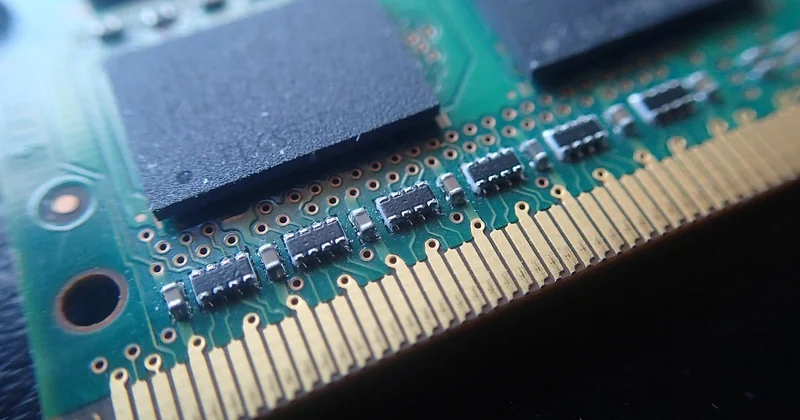
DDR4, DDR5, and whatever comes next. These are physically incompatible — the notch sits in a different place, the voltage differs, and a DDR5 stick will not fit a DDR4 slot. DDR5 is what new builds use now; DDR4 still runs a huge number of working machines perfectly well. If you're upgrading an older system, you're buying DDR4, full stop.
The frequency
This is the "3200 MHz" or "6000 MT/s" figure. Higher means the memory can move data in more cycles per second. Real-world gains exist but they're modest for everyday tasks and more noticeable in specific workloads — large game worlds, video encoding, big data sets.
The timings (CL, and that string of numbers)
Latency figures. How many clock cycles the memory needs before it delivers data when asked. Lower is better here, which trips people up because it's the opposite of the frequency.
What does 40 40 40 77 mean in RAM?
That string is a timing sequence, usually written in the order CAS latency, tRCD, tRP, tRAS. So 40-40-40-77 means the memory takes 40 clock cycles for the first three operations and 77 for a fourth, longer one. These are delays, not speeds — every one of those numbers is a wait, so lower values mean faster response. The first figure, CAS latency (often shortened to CL), is the one that shows up on product listings because it has the biggest practical effect. A kit rated CL30 will feel snappier than an otherwise identical kit rated CL40, even at the same frequency.
The reason this confuses everyone: high numbers appear in both "good" and "bad" contexts. A high frequency is good. A high timing number is bad. Same digits, opposite meaning.
Is 3200 MHz RAM a good speed?
Yes — for DDR4, 3200 MT/s is a solid, mainstream speed and a sensible default. It sits above the baseline JEDEC rating and below the point of diminishing returns for most tasks. For DDR5, the equivalent sweet spot is higher; 3200 MHz on DDR5 would be unusually slow. So the answer depends entirely on which generation you're buying. Context is everything with these numbers.
Honestly, if you're putting together a general-purpose machine on a budget, DDR4-3200 with a reasonable CAS latency is the purchase I'd make ten times out of ten over a more expensive kit you can't fully utilise.
| Use case | Capacity that works | Speed that makes sense |
|---|---|---|
| Browsing, documents, email | 8 GB (16 GB feels better) | DDR4-2666 or 3200 |
| Gaming, general creative work | 16 GB | DDR4-3200 or DDR5-5600+ |
| Video editing, virtual machines, heavy multitasking | 32 GB and up | DDR5-6000, lower CL preferred |
| Old laptop upgrade | Match existing, don't exceed board limit | Whatever the board supports — check first |
Is more always better? Capacity questions answered
The short answer is no, and the slightly longer answer involves what you actually do with the machine.
Is 32GB RAM faster than 16GB?
No — 32 GB is not faster than 16 GB. It's larger. Speed comes from frequency and timings, not from how many gigabytes you have. What 32 GB gives you is the ability to keep more open before the system starts swapping to disk. If you never exceed 16 GB in your normal day, the extra capacity sits unused and changes nothing about how quick the machine feels. If you regularly hit the ceiling, going to 32 GB removes a bottleneck — and removing a bottleneck can feel like a speed increase, which is probably why the two ideas get muddled.
I've seen this play out directly. On a machine that idled around 9 GB of usage, doubling to 32 GB produced no noticeable difference at all. Same machine, a heavy editing session that pushed past 15 GB: the upgrade was the difference between working and watching a progress bar.
Two sticks or one?
Here's the part that gets skipped in most beginner guides. Most consumer boards run memory in dual-channel mode when you install two matched sticks. That effectively doubles the bandwidth available to the processor. Two 8 GB sticks will typically outperform a single 16 GB stick, even though the total capacity is identical.
So the practical rule: buy in matching pairs, fill the correct slots (your motherboard manual tells you which — usually the second and fourth), and enable the memory profile in BIOS. That last step matters more than most people realise. A kit rated for 3200 will often boot at a much lower default until you turn on the profile.
What to check before you spend anything
Two things will save you from a wasted purchase.
Check your current usage first. On Windows, open Task Manager and look at the memory graph under Performance. If your peak is well under your installed capacity, more RAM won't help you. If it's pinned near the top during normal work, it will. On a Mac, Activity Monitor's Memory tab shows the same thing, and the "memory pressure" graph is even more direct — green means fine, yellow means strained, red means you're swapping heavily.
Check your ceiling. Your motherboard specifies a maximum supported capacity and frequency, and your CPU has its own memory controller limits. Exceeding either gets you nothing but a lighter wallet, because the hardware will simply run your expensive kit at a lower speed. Look up your exact board model and read the memory support list. It takes five minutes and prevents the single most common upgrade mistake.
And if you're on a laptop, verify whether the memory is even removable. A lot of thin machines solder it directly to the board, which means your upgrade path is "buy a different laptop." Check before you buy the sticks, not after.
A quick note on DDR4 vs DDR5 in 2026
DDR5 has become the default for new builds, but that doesn't make DDR4 obsolete. Plenty of capable machines run it, and DDR4 kits are often noticeably cheaper for equivalent capacity. If you're building new, go DDR5 and don't think about it again. If you're upgrading something that already exists, match what's already installed.
The bench-and-warehouse picture covers ninety percent of what you need. Capacity decides how much you can pile on the bench. Frequency and timings decide how fast you can reach for it. Generation decides whether the stick even fits. Get those three straight and the spec sheets stop looking like noise — they start looking like a short list of things you can actually compare.
Which leaves one question worth sitting with: how much of your upgrade budget have you been spending on numbers you never checked against your own machine?