Best practices for cooling your PC: what actually works when your machine starts cooking
Three summers ago I watched a framerate counter drop from 144 to 61 in real time. Same game, same settings, same hardware. The only variable was a room that had crept past 30°C. That's the moment overheating stopped being an abstract warning and became something I could measure. If your PC is running hot, the fix is usually one of five things—and four of them cost nothing.
Key Takeaways
- A CPU sitting above 85°C under load is working too hard for its cooling; below 70°C is comfortable.
- Dust is the number one cause of gradual overheating. It blocks fins and grilles long before it kills a fan.
- Airflow direction and intake/exhaust balance matter more than the number of fans you own.
- Laptops need different treatment than desktops—soft surfaces suffocate them.
- Thermal paste has a lifespan of roughly 3 to 5 years in a normal build.
- Fan control software (SpeedFan, Dell Fan Control, vendor utilities) lets you trade noise for temperature.
How to stop your PC from overheating: the causes ranked by frequency
Before you buy anything, understand what's happening. Heat in a PC isn't a mystery; it's a balance between how much the components generate and how fast it leaves the case. Break either side of that equation and temperatures climb. The problem? Most people reach for a new cooler when the actual culprit is a 2mm mat of dust.

Signs you should not ignore
Your machine tells you it's struggling long before it shuts down. Watch for fans that ramp up seconds after you open a browser, a case that feels hot to the touch near the exhaust, sudden stutters during tasks that used to run smoothly, or a Windows event log full of unexpected shutdowns. I ignored a noisy fan for four months. The eventual fix was 20 minutes with compressed air—the noise had been a dust warning the whole time.
What temperature is actually too hot?
Numbers, finally. For most desktop CPUs, idle should sit between 30°C and 45°C. Under heavy load, 70–80°C is normal, and 85°C is where you should start paying attention. Modern chips throttle themselves around 95–100°C, which prevents damage but craters performance. GPUs behave similarly: 60–75°C under load is healthy, and anything sustained past 85°C deserves investigation. On laptops, add 5–10°C to those ranges—they run warmer by design. You'll want a tool like HWMonitor or HWiNFO to read these values; Task Manager won't show them.
The unglamorous fixes: cleaning and airflow
Here's my honest opinion after years of tinkering: 90% of overheating complaints are solved by cleaning and repositioning, not by spending money. I've fixed more machines with a can of air than with any component I've ever bought.

How to clean without breaking anything
- Power down and unplug before you open anything.
- Hold fans still with a finger while you blow air—spinning them past their rated speed can damage bearings.
- Work outside or in a garage. The dust cloud is genuinely impressive.
- Target the fins and the intake grilles, not just the fan blades.
- For laptops, focus on the side and bottom vents; that's where the clog forms.
Intake vs exhaust: the detail most people get wrong
Air needs a path. A case with three exhaust fans and one intake creates negative pressure, which pulls dust in through every crack and can starve your components of cool air. Aim for slightly more intake than exhaust—this is called positive pressure, and it keeps dust out while feeding your CPU cooler. Rear and top fans typically exhaust; front and bottom fans typically intake. Check the arrows on the fan frame if you're unsure, because guessing means reinstalling everything.
Cooling a laptop: constraints you can't engineer away
Desktops have space. Laptops have compromise. A thin chassis means smaller fans, shorter heatsinks, and no room for airflow. You can't fix that with a single trick—but you can stop making it worse.
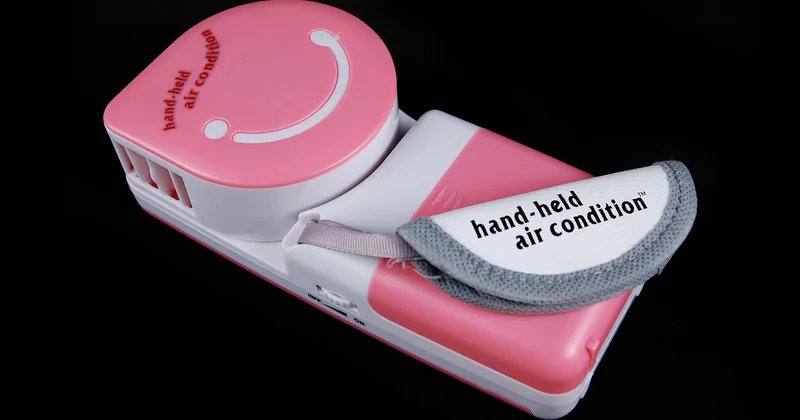
How to cool down a laptop without a cooling pad
Start with the surface. A bed, a couch cushion, or your lap blocks the bottom vents entirely, and that alone can push a laptop 10–15°C hotter. Move it to a hard, flat table. Elevate the rear edge by an inch or two—a stack of books works, and I've used one for months without shame. Lower the ambient room temperature if you can; every degree in the room translates roughly to a degree inside the chassis. Beyond that, reduce the load: close background tabs, cap your in-game framerate, and set the Windows power plan to Balanced rather than High Performance. These steps won't turn a hot laptop cool, but they'll keep it out of throttling range.
When an external cooler earns its place
A cooling pad helps most when your laptop already has good internal cooling that's being choked by airflow. It helps least on machines with tiny vents that can't move air regardless. If you're buying one, prioritize models that push air into the bottom vents rather than pulling it away, and check that the fan alignment matches your laptop's intake position. A misaligned pad is just a loud piece of plastic.
Controlling fan speed: tools worth knowing
Sometimes the hardware is fine and the fan curve is just lazy. Default curves often wait too long to spin up, letting heat build before reacting.
| Tool | Best for | Notes |
|---|---|---|
| SpeedFan | Older desktops | Powerful but dated; compatibility varies |
| Dell Fan Control utility | Dell laptops and desktops | Limited to supported Dell models |
| BIOS/UEFI fan curves | Custom desktop builds | Most reliable, set once and forget |
| Vendor software (MSI, ASUS, etc.) | Branded laptops | Convenient, sometimes bloated |
How to control fan speed on laptop Windows 11
Open your manufacturer's utility first—Dell, HP, Lenovo, and others ship their own fan and thermal profiles. In Windows 11, go to Settings, then System, then Power & battery, and adjust the power mode; this indirectly influences how aggressively fans respond. For finer control, the BIOS is your best option on desktops, while laptops usually depend on the vendor tool. Third-party utilities like SpeedFan can work, but on modern laptops they frequently can't see the fans at all, because the embedded controller is locked down. If a tool reports no fans detected, that's not a bug—it's the manufacturer keeping you out.
Thermal paste and hardware upgrades: when they're worth it
Replacing thermal paste is the fix people recommend most and understand least. On a desktop, quality paste lasts roughly 3 to 5 years before it dries and loses conductivity. On laptops, it can degrade faster because of higher sustained heat. The telltale sign is temperatures that climbed gradually over a year despite a clean machine.
I repasted an older laptop last year and dropped peak temperatures by about 8°C—worth the effort, but only after cleaning had already failed to help. If you're not comfortable disassembling your device, don't. A botched paste job or a cracked connector costs far more than the cooling you gain. For most people, better case fans or a repositioned setup delivers 80% of the benefit with none of the risk.
A few quick answers
Does undervolting actually help?
Yes, and it's underrated. Reducing CPU voltage slightly can cut temperatures by several degrees with no meaningful performance loss. It requires caution and testing, but it's one of the few free wins available on laptops where you can't add hardware.
Is a hot PC dangerous?
Modern chips protect themselves by throttling, so immediate damage is unlikely. The real cost is long-term: sustained high heat wears components faster and shortens the life of your hardware. It's not an emergency, but it's not nothing either.
The fix nobody wants to hear
You can buy the biggest cooler on the market and still run hot, because cooling isn't about one component—it's about a system staying in balance. Dust, placement, airflow direction, fan curves, ambient temperature: each one nudges the total. I've seen a $40 fan swap beat a $150 cooler simply because the person finally cleared the intake grille. Start with the free things. Clean, reposition, adjust your curves. Then, and only then, spend money. Most machines never need step four. And when you do open that case next, take a photo before you touch anything—future you will be grateful.