You've got the CPU picked out, the GPU is on order, and then you hit a wall of numbers: 6000, CL30, DDR5, 2×16, EXPO. RAM is the one component where the spec sheet is almost useless to a newcomer and where two kits that cost the same can behave very differently in your machine. So let's make this concrete.
Choosing RAM for a gaming PC build comes down to four decisions: capacity, generation (DDR4 or DDR5), speed and latency, and the physical slots you fill. Get those right and you spend nothing extra. Get them wrong and you either overpay for memory your games never touch, or you throttle the CPU you just bought.
Key Takeaways
- 16 GB is a workable floor for gaming; 32 GB is the sensible target for a new build you'll keep for years
- Buy the DDR generation your motherboard accepts: DDR4 and DDR5 slots are physically incompatible
- Install two sticks in the second and fourth slots from the CPU on a four-slot board
- Enable XMP or EXPO in the BIOS, or your fast kit will run at slow default speeds
- A tighter kit at moderate speed usually beats a loose kit at extreme speed
How to choose RAM for a gaming PC build without wasting money
The single most common mistake I see in build lists is buying RAM by the number on the box. A kit labelled 6400 sounds better than one labelled 6000, so it must be faster. Except on many AMD platforms, that 6400 kit will either refuse to boot with its rated profile or force the memory controller into a mode that costs you more performance than the extra speed gains.
Here's the thing: RAM doesn't work in isolation. It's a negotiation between the memory sticks, the motherboard's memory topology, and the integrated memory controller on your CPU. That three-way relationship decides what you can actually run stably, regardless of what's printed on the packaging.
Decide capacity before anything else
Capacity is the one spec where more genuinely doesn't hurt performance, it just hurts your wallet. Games stream assets into RAM as you play, and if there's not enough room, the system pages data to your SSD mid-scene. Result: stutter you can feel, especially in open-world titles with fast travel.
- 16 GB — fine for a budget build playing at 1080p, but you'll notice the ceiling in a few years
- 32 GB (2×16) — the practical sweet spot for a build you intend to keep
- 64 GB — only if you stream, edit video, or run virtual machines alongside games
One detail worth knowing: a single 16 GB stick gives you single-channel operation, which roughly halves memory bandwidth. Always buy sticks in matched pairs. A 2×8 GB kit will outperform a single 16 GB stick by a noticeable margin in games, even though the total capacity is identical. This is not a subtle effect you need a benchmark tool to find — it shows up as lower and less consistent frame rates in CPU-limited scenarios.
DDR4 or DDR5: the choice is made for you
You don't really choose this one. Your motherboard socket decides it. Current-generation boards use DDR5 only, while older platforms still run DDR4. There is no adapter, no dual-compatibility trick, and mixing the two is not a thing. Before you buy any kit, open your motherboard's spec page and check the memory type and the supported speed range. Five minutes there saves a returned order.
If you're building fresh in 2026, DDR5 is the default and you shouldn't fight it. If you're upgrading an older DDR4 machine, don't rebuild the whole platform just for memory speed — DDR4-3600 CL16 kits remain perfectly good for gaming, and swapping to DDR5 means a new board and CPU as well.
Which slots do you actually fill?
This is where I see the most avoidable errors. You buy a nice 2×16 GB kit, snap both sticks into the two slots nearest the CPU because they look natural, and you've just built a machine running in single-channel mode. It works. It boots. It's also leaving performance on the table for free.
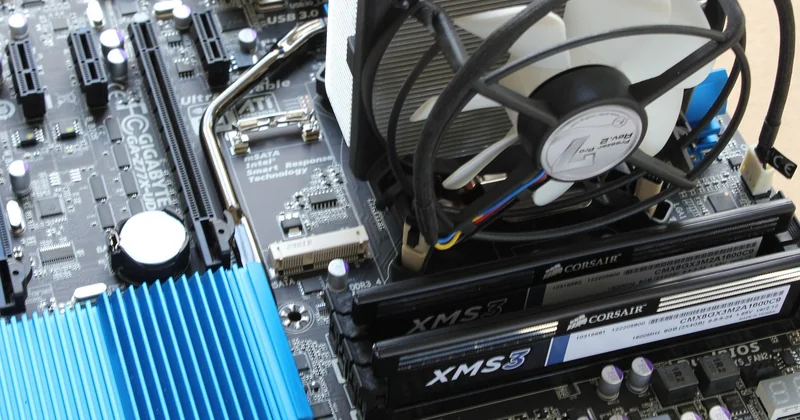
Should you put your RAM in A1 and B1 or A2 and B2?
On a four-slot motherboard, use A2 and B2 — the second and fourth slots counting away from the CPU socket. Those are the slots the board is wired for optimal signal integrity, and they're the ones the manual tells you to populate first for dual-channel operation. A1 and B1 (the first and third slots) are the secondary pair; fill those only if you're running four sticks.
How do you confirm it worked? Boot into the BIOS and look for the memory configuration screen. It should report "Dual Channel" or show both channels populated. If it says single channel, power down and move the sticks one slot over. That's the whole fix.
And if you're running four sticks instead of two? Expect to run them at a lower speed than the kit's rating. Four modules put more load on the memory controller, and many boards will quietly downclock to stay stable. My honest advice: buy two larger sticks rather than four smaller ones.
Speed and timings: what actually matters
A RAM kit's headline figure is its data rate in megatransfers per second — the "6000" in DDR5-6000. The second number is CAS latency, the CL value, which measures how many clock cycles the memory waits before delivering requested data. Lower CL is better, but it's measured in cycles, so a higher-speed kit with a proportionally higher CL can be just as responsive.
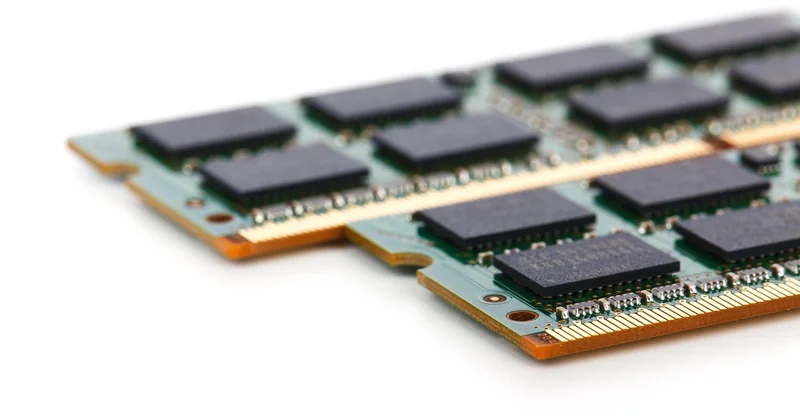
Rather than doing the arithmetic every time, use this rough guide for DDR5 gaming builds:
| Kit | Where it fits | Notes |
|---|---|---|
| DDR5-5600 CL36 | Budget builds, prebuilt upgrades | Cheapest entry point, modest gains over DDR4 |
| DDR5-6000 CL30 | The default recommendation | Runs at a clean 1:1 ratio with the memory controller on current AMD chips |
| DDR5-6400 CL32 | Intel builds, or AMD with a good board | May need manual tuning on AMD; check your board's QVL |
| DDR5-7200+ | Enthusiasts who enjoy tuning | Diminishing returns for the money in most games |
The 1:1 ratio point deserves a sentence of its own. On AMD's current platforms, the memory controller and the RAM run in lockstep up to a certain speed. Push past it and the controller drops to a divider mode, adding latency that cancels out much of the bandwidth gain. That's why a well-tuned 6000 CL30 kit is the community favourite — it sits right at the edge of that sweet spot.
Don't forget to enable XMP or EXPO
Out of the box, your expensive kit runs at the JEDEC default — often something like 4800 or 5600 — because the board plays it safe until you tell it otherwise. The rated profile is a one-click setting in the BIOS: XMP on Intel boards, EXPO on AMD. Enable it, save, reboot.
Then check stability. Run a memory test overnight, or at minimum play your most demanding game for an hour. If you get crashes or boot loops, drop one speed step. A kit that isn't stable at its rated profile is worse than a slower kit that is.
The questions people actually ask
Is 16 or 32 GB RAM better for gaming?
32 GB is the better choice for a new build. 16 GB still runs every current game, but the margin is thin once you factor in a browser with a dozen tabs, Discord, and a game launcher all sitting in the background — which is how most people actually use a gaming PC. The cost difference between a 2×8 and a 2×16 kit is small relative to the rest of a build, and it buys you headroom for years.
Is 32 GB RAM overkill for gaming?
No. Very few games will use all of it on their own, but the operating system and background applications consume a meaningful chunk, and having spare capacity prevents the paging stutter described earlier. Where 32 GB becomes genuinely unnecessary is a strict single-task machine: one game, nothing else running, 1080p, older titles. In that narrow case, 16 GB is fine.
Is 64 GB RAM overkill in 2026?
For pure gaming, yes. No current game benefits from 64 GB in a way you'd notice, and the money is better spent on a faster GPU. The exception is if the same machine doubles as a workstation — video editing, 3D rendering, large virtual machine setups, or heavy streaming with many overlays and capture buffers. Then 64 GB earns its place. Buy it for that reason, not for frames per second.
What should you check before buying a RAM kit?
Four things, in this order: the memory type your board accepts, the maximum supported speed on the board's spec page, whether the kit appears on the motherboard vendor's qualified list, and the physical height of the heatspreader. That last one catches people out — tall RGB modules can foul a large air cooler. Measure the clearance under your cooler before you fall in love with a kit.
If you only remember one thing
Buy a matched pair, in the generation your board takes, at a speed the memory controller handles without a divider, with a latency low enough that you're not paying for bandwidth you throw away. Then enable the profile in the BIOS and check that the board reports dual channel.
The part nobody tells you: the difference between a well-chosen kit and a mediocre one is often smaller than the difference between a mediocre kit and a mediocre kit with the XMP profile left off. Configuration beats specification. And if you ever find yourself staring at a BIOS screen wondering why your 6400 kit won't POST, you're in good company — half the builds I've helped troubleshoot ended with someone quietly nudging a stick one slot to the right.